
1.  

Checking Feedback

SHARE
twitter

Grades and Feedback

Checking Feedback

In an online class, feedback is one of the most important ways your teacher communicates with you about your work. It helps you understand what you did well, what needs improvement, and what to do next.

Quick Guide

Find It. Read It. Use It.

Reading feedback carefully can help you avoid repeating mistakes and feel more confident about how to improve. Do not stop at the grade. Your teacher may leave written comments, audio or video feedback, annotations, or notes about what to work on next.

Find It

Check My Grades, the Grading Center, or open your assignment to find feedback.
Feedback icon

Read It

Slow down and read all of the feedback. Do not stop at just the grade. Your teacher may explain what was strong, what was missing, or what you should improve next time.

Use It

Apply the feedback to your next assignment. Feedback is most helpful when you use it to make a change, ask a question, or improve your work going forward.

Feedback Icon

How Do I Know If There Is Feedback?

While you are looking at My Grades, you can also check the feedback that your teacher has provided. Look for the Feedback icon in My Grades.

Feedback may appear in different places depending on the type of assignment. Open the sections below to learn where to find feedback for assessments, assignments with attachments, and discussion boards.

Feedback icon

Feedback Icon

Where to Look

Open the Right Feedback Area

Open the folders below to learn more about accessing your feedback by looking at assessments, assignments with attachments, and discussion boards.
 Assessment Feedback 

Assessments

Instructor Feedback and Question Feedback

For graded assessments, there are two types of feedback available: Instructor Feedback and Feedback for Individual Questions. To view your feedback, select any assessment, quiz, or test from your coursework.

Assessment feedback screenshot showing where students can find feedback on a graded assessment.

Note: You can find your feedback by going to My Coursework at the top of the screen in your CVA class or by clicking My Grades from the Left-Navigation Menu.

 Assignments and Attachments Feedback 

Assignments

Instructor Feedback and Attachment Feedback

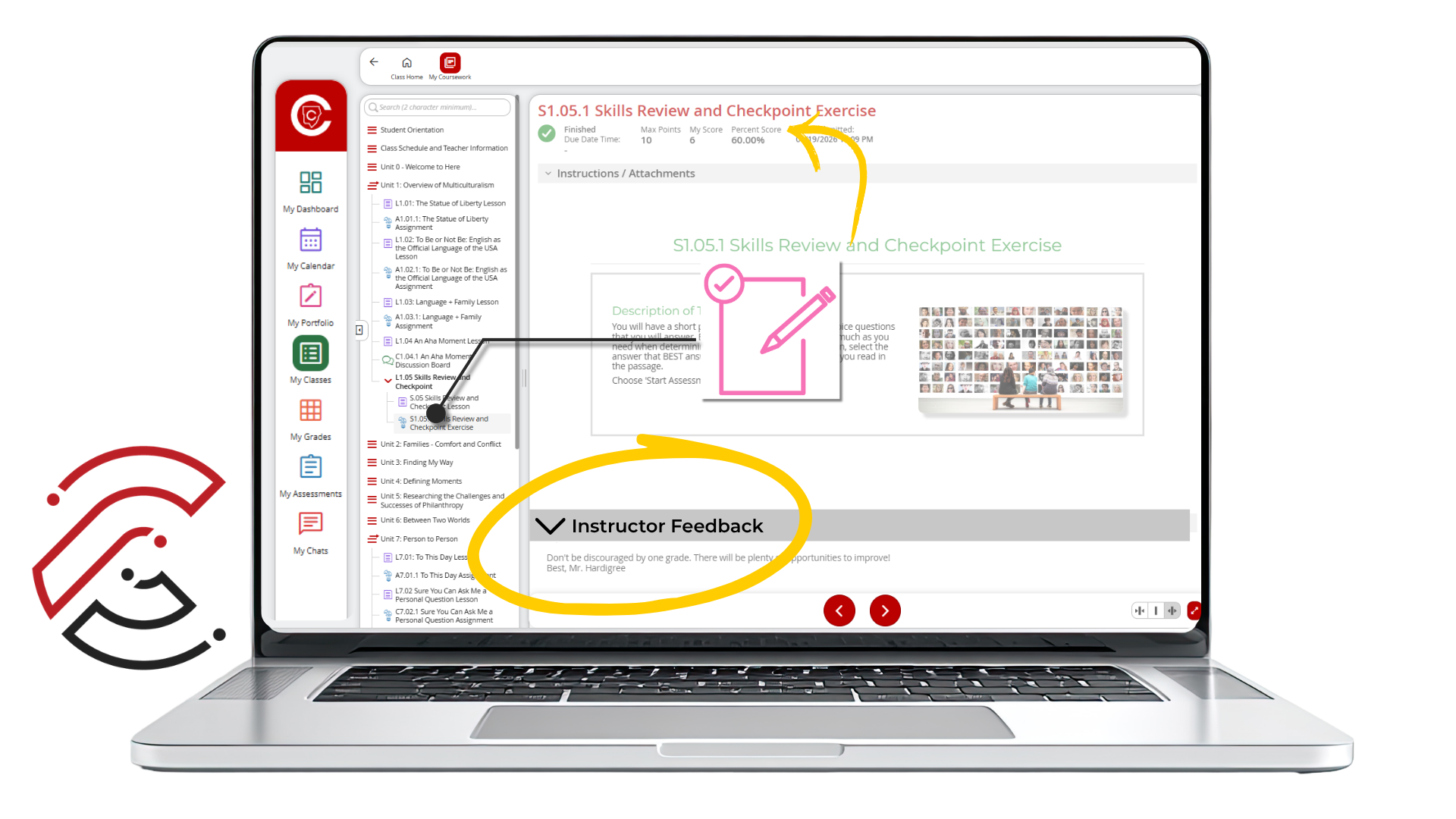
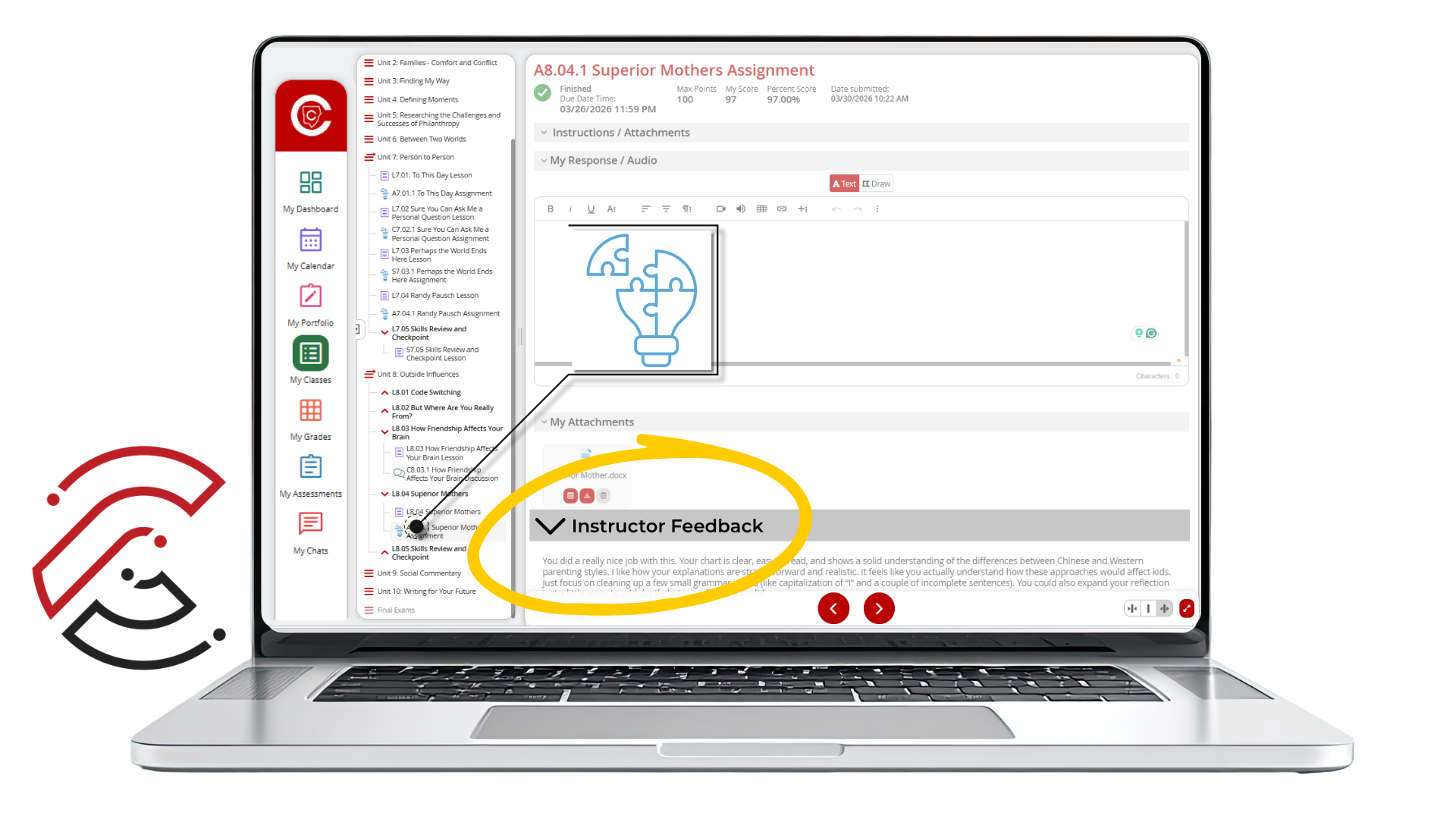
Check your teacher's feedback for all assignments by clicking on Instructor Feedback. Teachers may write feedback, or they might include a quick audio or video note. Feedback is an important part of the learning process, so read it, ask questions, and incorporate it into your future assignments.

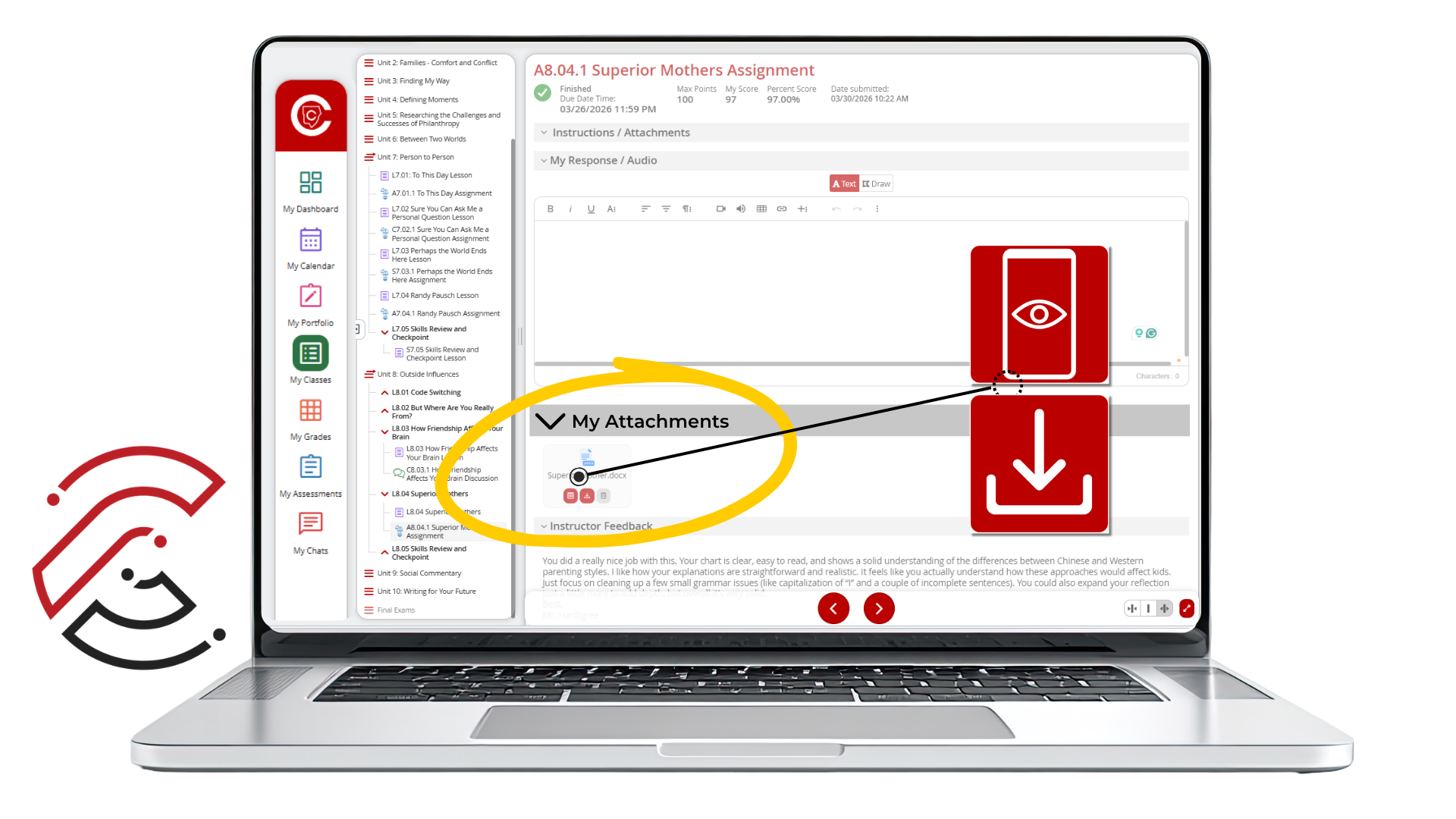
Assignments and attachments feedback screenshot showing the Instructor Feedback area.

If the assignment required you to upload an attachment, you can also see your teacher's feedback by opening the attachment under My Attachments. Your teacher most likely annotated directly on the document. You have the options to View or Download the attachment.

Screenshot showing View and Download options for attachment feedback.
 Discussion Feedback 

Discussions

Public Comments and Private Feedback

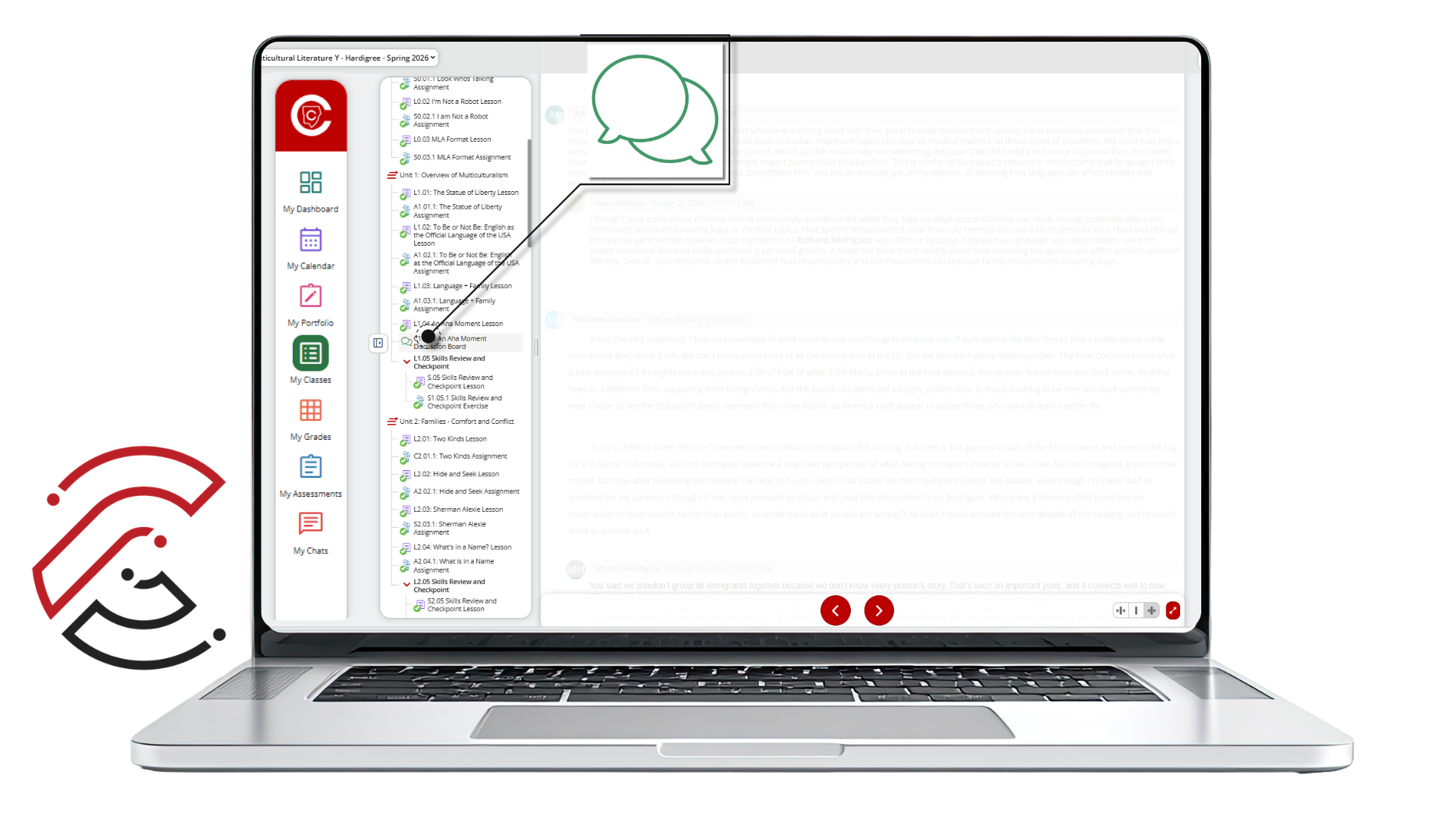
You can view posted comments from the Discussion Board. These comments are public, meaning everyone in the classroom can read and respond to the posts.

Discussion feedback screenshot showing public discussion board comments.

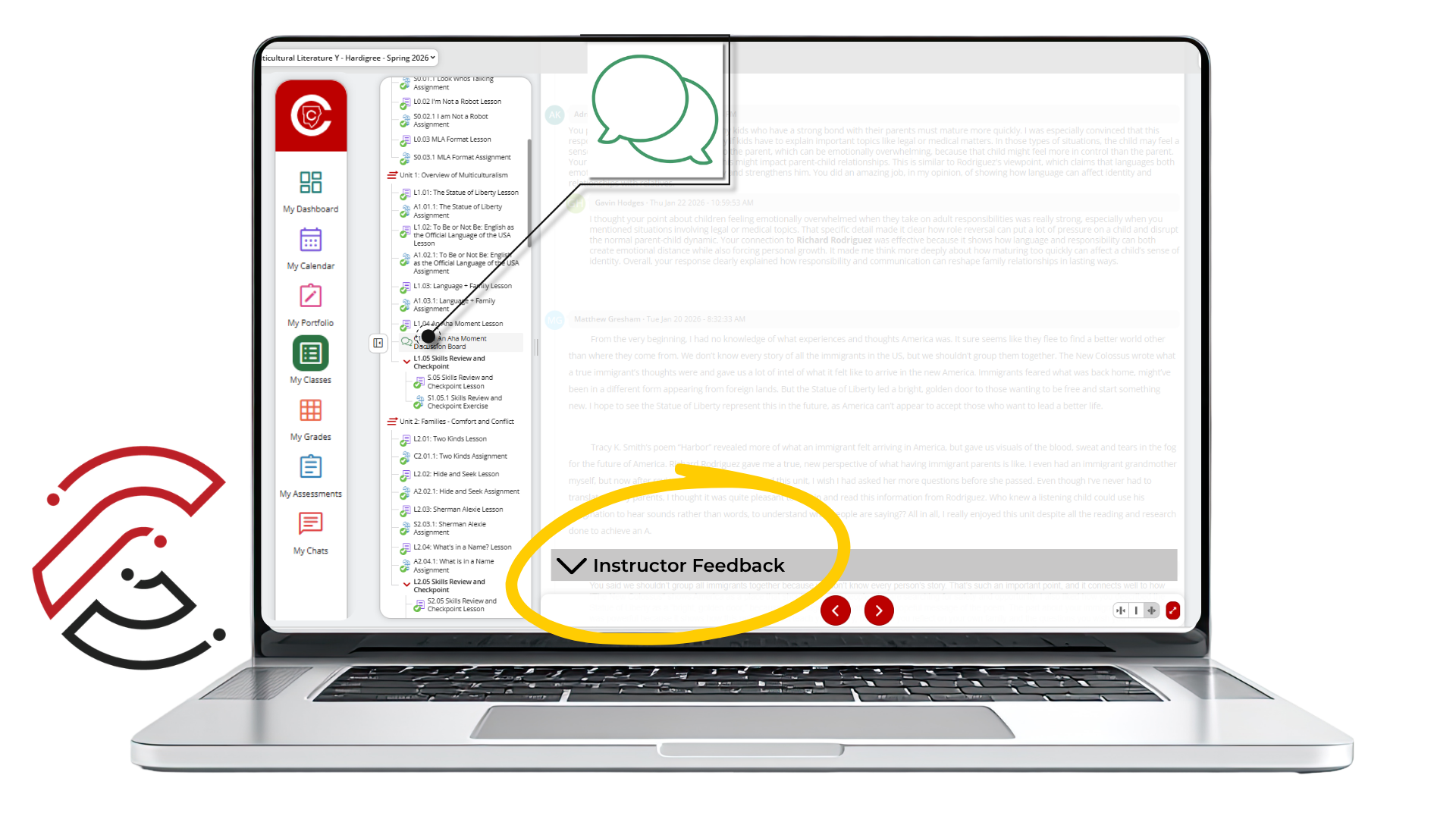
Teachers may also include Instructor Feedback. Scroll to the bottom of the page to view this feedback. This is private feedback, so you are the only person in the class who can read it.

Instructor feedback and comments screenshot showing private discussion feedback.

Important Reminder

Feedback Helps You Improve

Feedback is most helpful when you read it carefully and use it on future assignments. If something does not make sense, contact your teacher and ask for clarification.


Class. Virtually. Anywhere.