

My Grades
Understanding Your Grades
In CVA, you will use My Grades in CTLS to track your progress and review feedback. You will use StudentVUE to view your official grade of record.
Official Grade
StudentVUE
StudentVUE, also called Synergy, is where you can find your overall grade average in the class. While you can see an average in My Grades, what you see in StudentVUE is your official grade of record. This is the grade that will be on your report card.
It is important to remember that there is an overnight update, called a sync, between a grade posted in CTLS and the grade being visible in Synergy. For example, if your teacher grades an assignment this afternoon, you will be able to see your grade and feedback immediately in CTLS. However, it can take up to 24 hours for that grade to appear in StudentVUE, so that grade and your updated course average may not be visible in StudentVUE right away.
Remember: StudentVUE is your official grade of record. Contact your teacher if you have any questions.
Course Progress
My Grades
My Grades is where you can keep track of your progress in the course. It helps you see how you are doing and stay organized throughout the term.
Once you are there, you can search for specific assignments, check the grades you have earned, and read feedback from your teacher. You can also review past submissions and see which assignments still need your attention.
DIRECTIONS: Use the interactive guide below to learn more about viewing your grades in CTLS, including how to tell which assignments are missing.
Gradebook Icons
Use Icons as Visual Shortcuts
When you look at My Grades in CTLS, you’ll notice small icons that give you quick information about the status of your work without needing to go back and open the assignment from Coursework.
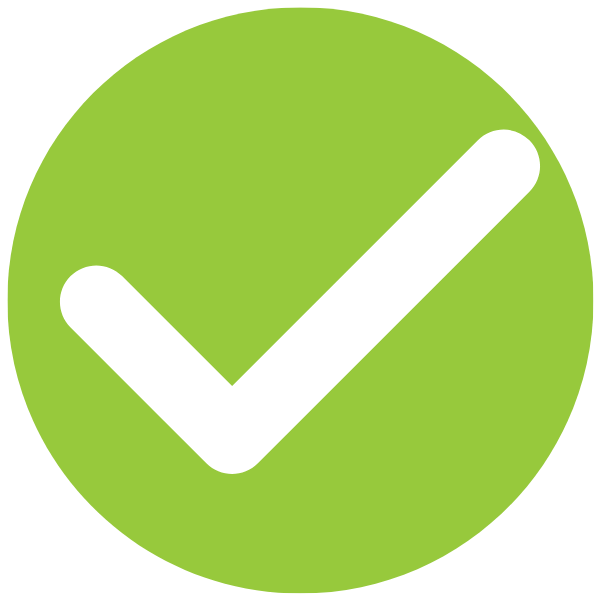
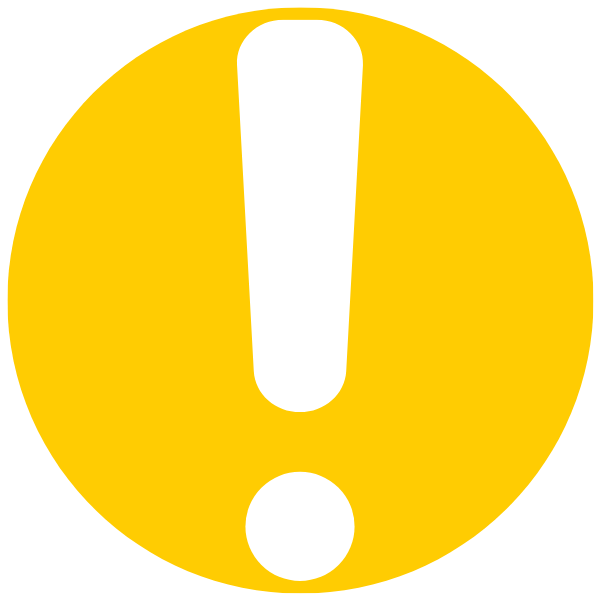
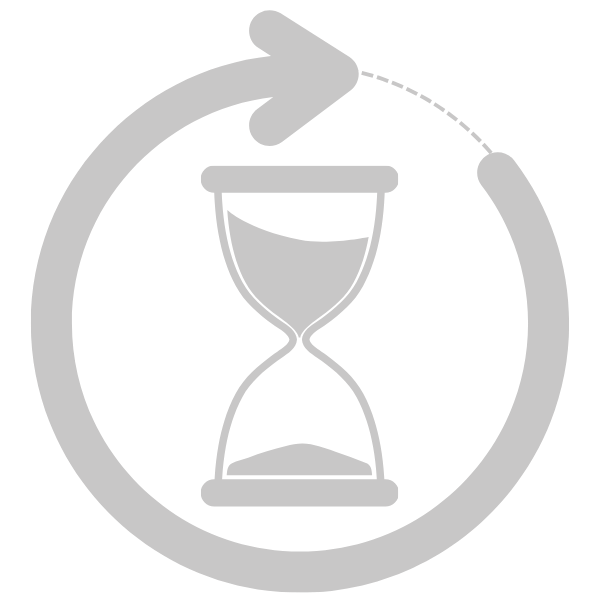
Icons can show whether an assignment has been submitted, graded, missing, reopened, or still needs to be completed. If you’re unsure about an assignment, the icons can help you figure out your next step.
DIRECTIONS: Click each icon card below to learn what it tells you about your grade or progress in a CTLS class.
Quick Guide
What Do the Gradebook Icons Mean?
Open each card to see what the icon means and what you may need to do next.

Next Steps
Use Icons to Decide What to Do
Missing or Assigned
Open the Assignment
Check the directions, complete the work, and submit it in CTLS.
Submitted
Wait for Grading
Your teacher still needs to review the assignment and enter a grade.
Finished or Feedback
Review Your Results
Check your grade and read any feedback your teacher has provided.
Resubmission
Submit Again
Your teacher has reopened the assignment so you can make changes and resubmit.
Important to Know
Seeing More Than One Icon Is Normal
In My Grades, you may see different icons next to your assignments. These icons help show things like status, feedback, or submission details. They are there to help you understand your progress, so don’t worry if you see more than one.
Class. Virtually. Anywhere.