

Student Support
CTLS Dashboard
Use this page to learn how to move around CTLS Student, choose the dashboard view that works best for you, enter your classes, and use common navigation and accessibility tools.
Quick Guide
What You Can Do on the Dashboard
CTLS Student is where you will access your CVA classes, view announcements, check your grades, open coursework, communicate with teachers, and use tools that can support your learning.
Find Your Classes
Use Select a Class or My Classes to enter your Digital Classrooms.
Check Updates
Use your dashboard, boards, announcements, and feed to find important information.
Use Support Tools
Accessibility tools can help with reading, listening, captions, transcripts, and focus.
Dashboard Views
Choose the View That Helps You Find What You Need
Your CTLS Student Dashboard can be viewed in different ways. Each view organizes information a little differently.
Widget View
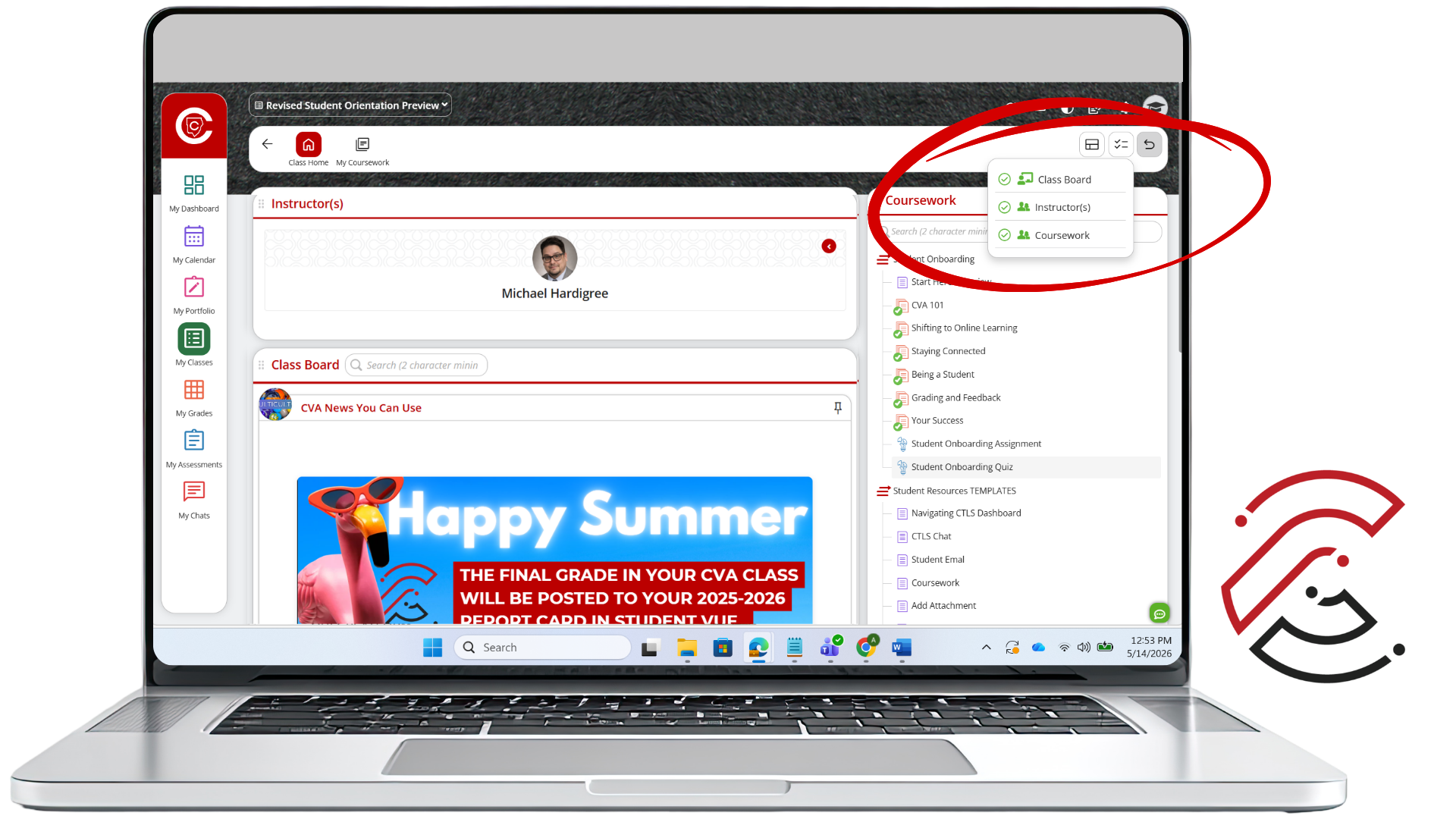
The custom homepage lets you move, resize, and show or hide widgets on screen. Widgets include Class Board, Instructor(s), and Coursework.
Quick Widget Guide
Sessions: View Live Sessions connected to your classes.
Boards: View Class Board posts for CVA-wide news and teacher updates.
Announcements: Read important course announcements so you do not miss updates.
Feed View
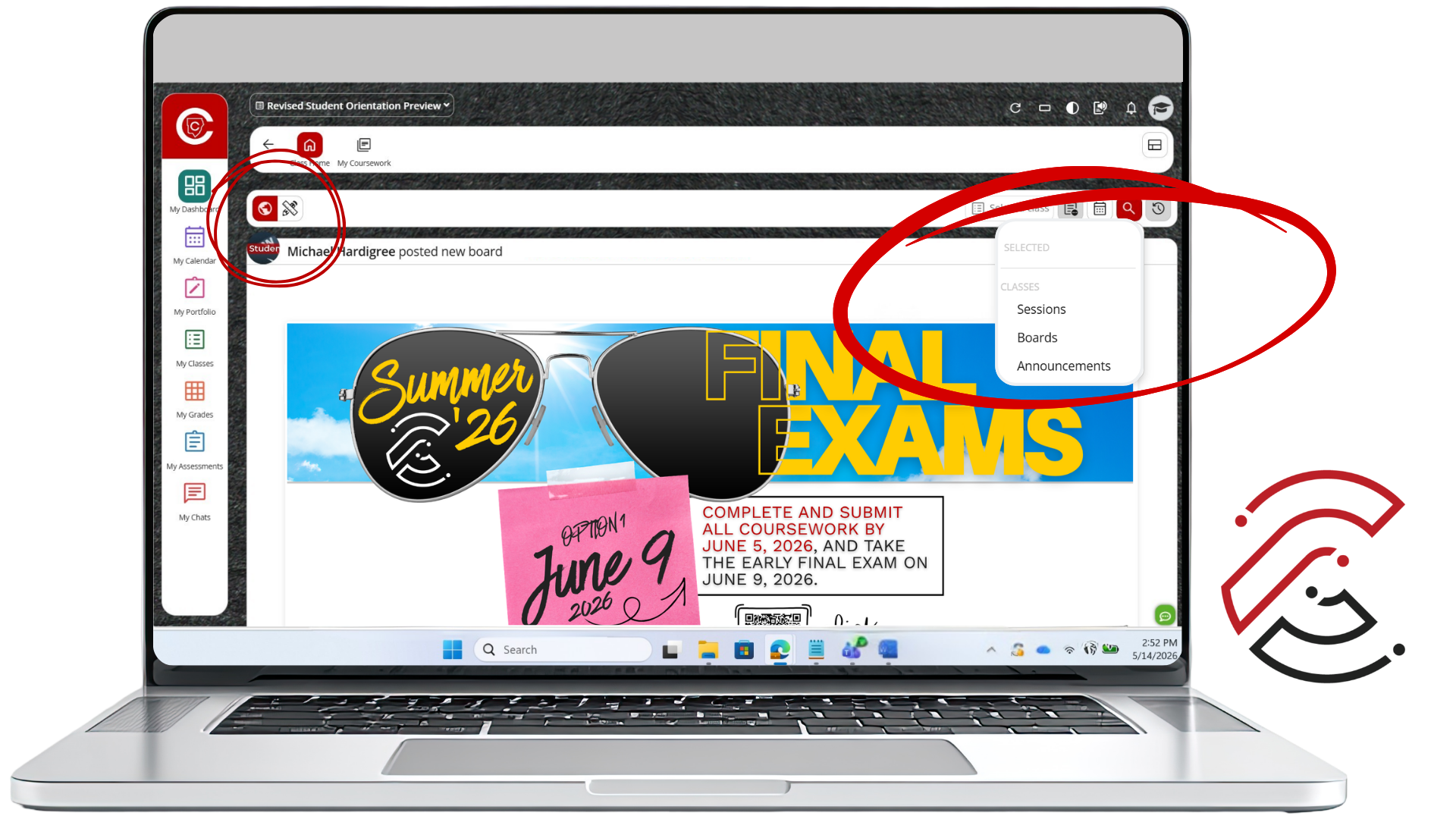
Switch to Feed View to see a running list of all Announcements, Board Posts, and Sessions. Filter by type, class, or date.
Quick Filter Guide
All Posts: View everything in the feed.
Filter by Class: Show items from one Digital Classroom.
Filter by Type: Look for Sessions, Boards, and/or Announcements.
Filter by Date: Find items from a specific day or date range.
Search: Find a specific word, topic, or assignment title.
Class Access
Select a Class
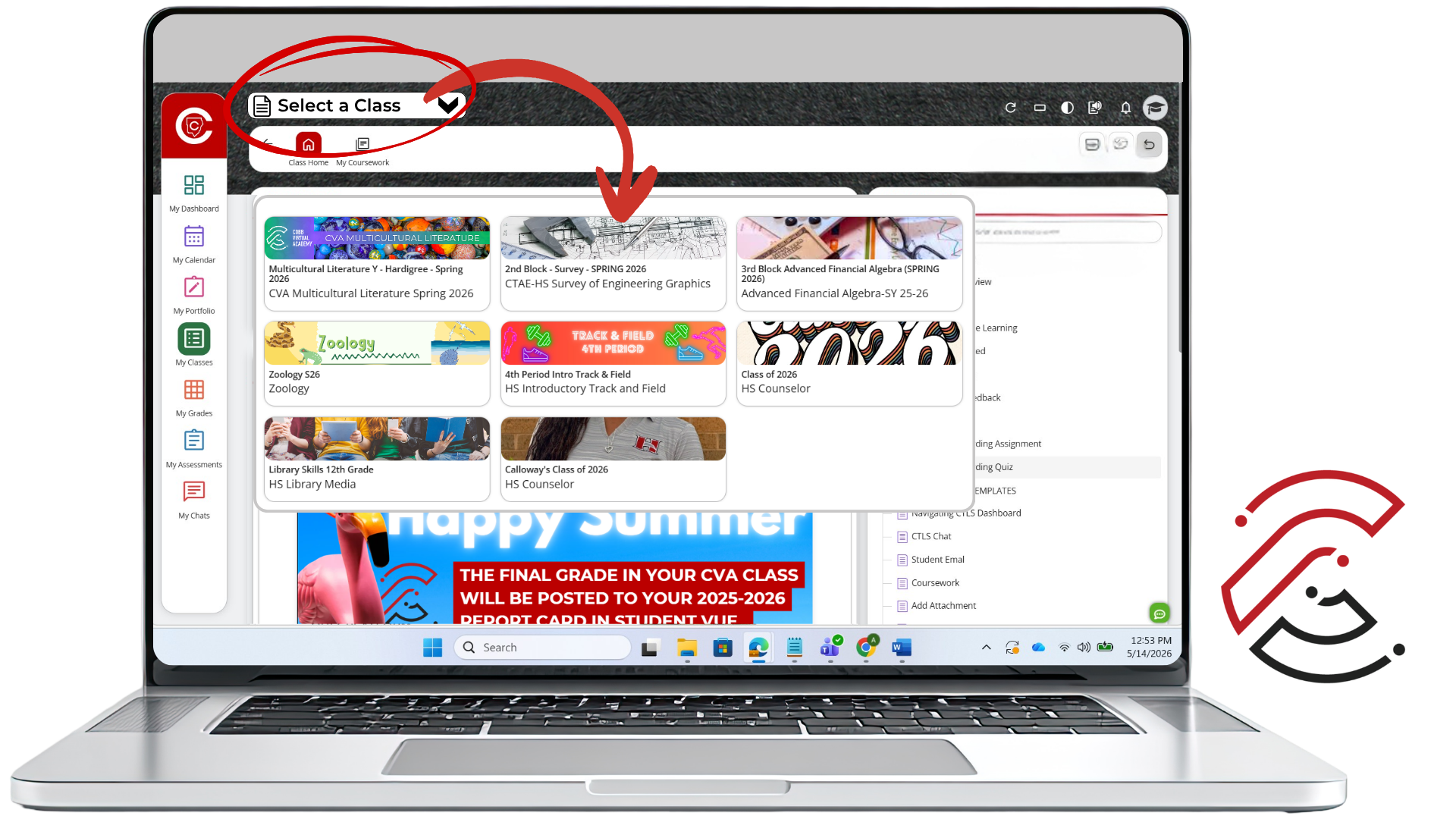
In the top-left corner of your Dashboard, click Select a Class to navigate directly into one of your classes. Click the class tile for the Digital Classroom you want to enter. This option is also available on the left-hand navigation by clicking My Classes.
Navigation
Left-Hand Navigation
Use the left-hand navigation to move to other areas of CTLS Student. Click each item to learn what it does.
Accessibility Tools
Tools That Support Learning
Locate the Accessibility Tools in the top-right corner of CTLS Student. Click each tool to learn how it can help.


Important Reminder
Start with Your Dashboard
If you are not sure where to go, return to My Dashboard or use Select a Class to enter the Digital Classroom for the course you need.
Class. Virtually. Anywhere.