
1.  

Navigating CTLS Icons

SHARE
twitter

Getting Started

CTLS Icons

As you move through your course, you’ll see the same icons appear again and again in CTLS. Learning what these icons mean will help you understand what each item is asking you to do. You do not need to memorize every icon right away. This guide is here to help you recognize them when you see them in your course.

Quick Guide

Recognize What Each Icon Means

Icons are visual clues. They help you know whether you are opening a page, entering a folder, submitting an assignment, taking an assessment, joining a discussion, or moving through a lesson.

Directions: Open each card below to learn what the icons mean and what to do when you see them in your course.
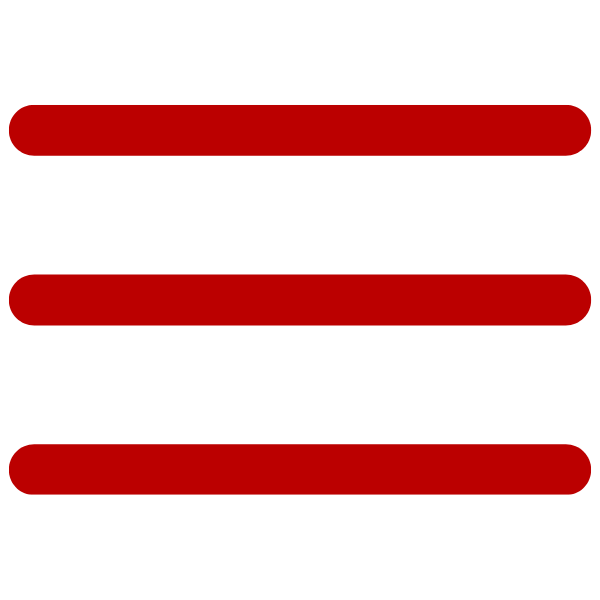
 FolderIcon of three horizontal lines, representing a folder or main course section. Click to learn more 

This icon means there’s a folder with additional materials inside. Click it to find extra resources, instructions, or documents related to your class.

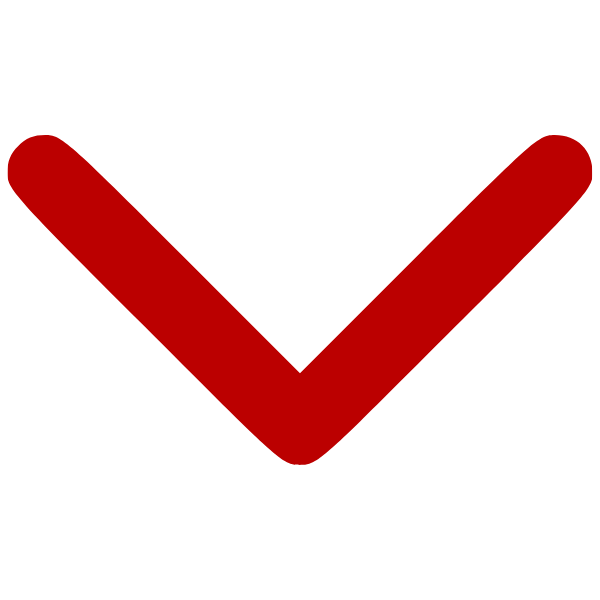
 Sub-FolderIcon of a downward chevron, representing a subfolder or expandable section. Click to learn more 

This icon shows that another folder exists inside a main folder. Open it to access more specific materials or organized sections of content.

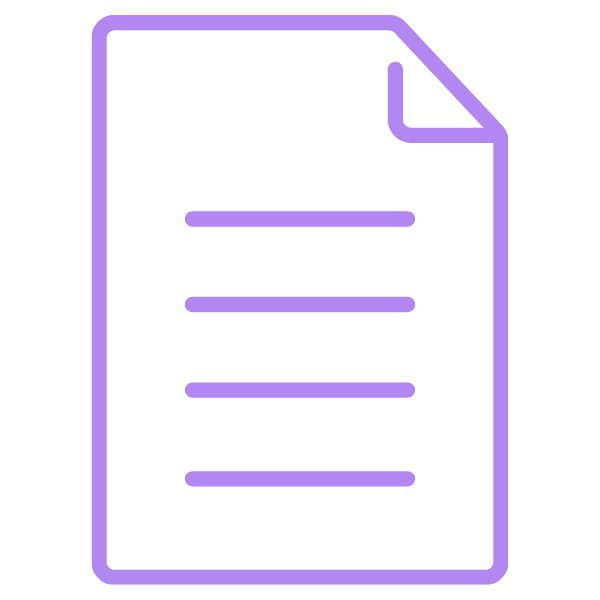
 PageIcon of a document page with text lines, representing a course page or informational page. Click to learn more 

This icon represents a single page of information. Open it to read instructions, review content, or view lesson details.

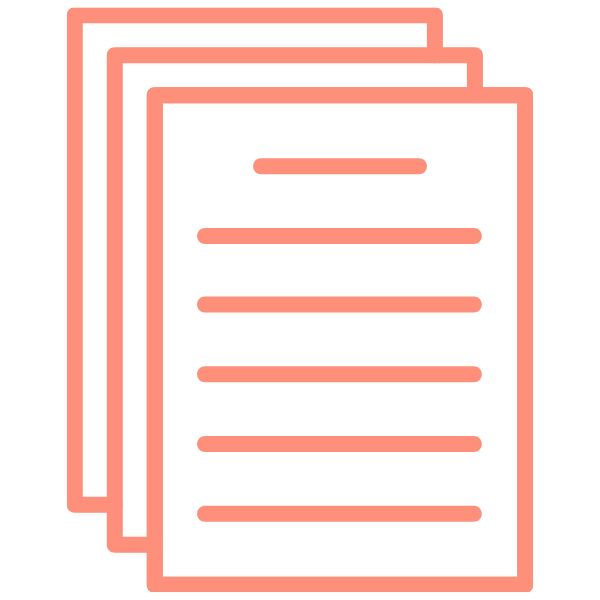
 BookletIcon of stacked pages with text lines, representing a booklet or collection of course materials. Click to learn more 

This icon usually means a lesson with multiple pages. Work through the pages in order and use the navigation buttons or arrows to move through the lesson.

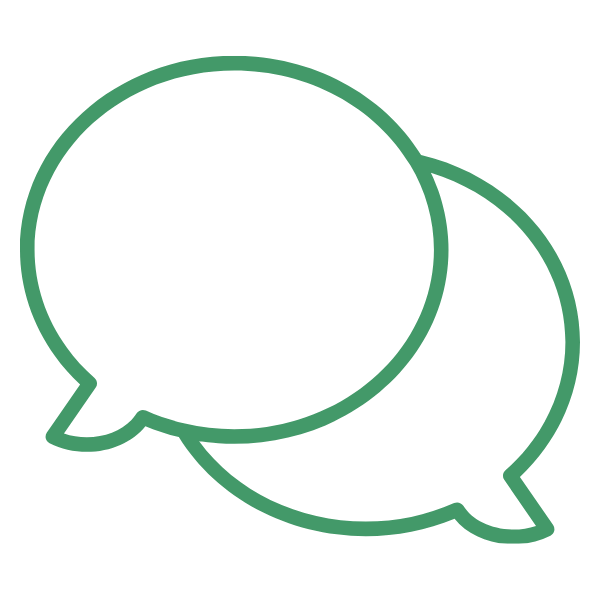
 Discussion BoardIcon of overlapping speech bubbles, representing a discussion board or class conversation. Click to learn more 

This icon marks a Discussion Board. Use it to share your ideas, respond to classmates, and participate in class conversations.

 AssignmentIcon of a puzzle-piece lightbulb, representing an assignment or learning activity. Click to learn more 

This icon represents work you will submit. It may include projects, labs, written responses, or other tasks that your teacher will grade. You cannot submit links for any assignment.

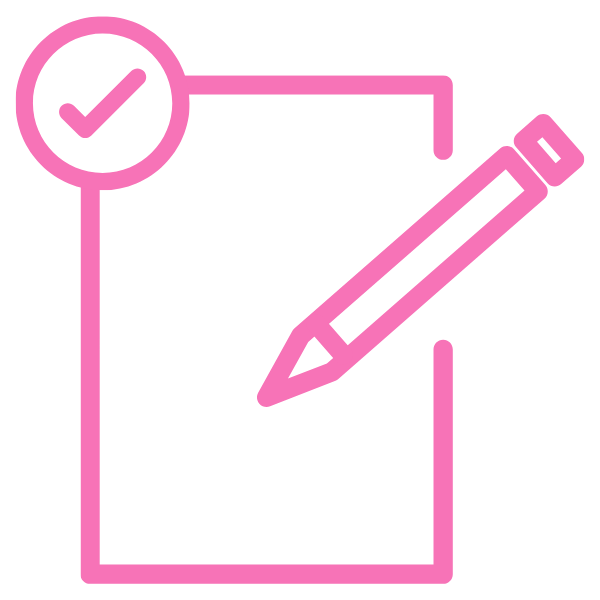
 AssessmentIcon of a checklist with a pencil, representing an assessment or graded task. Click to learn more 

This icon indicates a quiz or test. These activities check your understanding of the lesson or unit.

 NavigationIcon of left and right arrows inside red circles, representing navigation buttons. Click to learn more 

These arrows help you move through the lesson. Use them to go forward to the next page or back to review something again. You can also use the dropdown menu to jump to a specific page.

What to Expect

Icons Help You Know What to Do Next

Read

Pages and Booklets

These icons usually mean you need to read information, follow directions, or move through a lesson.

Submit

Assignments

This icon means there is work to complete and submit to your teacher for grading.

Respond

Discussion Boards

This icon means you may need to post your own response and interact with classmates.

Check Understanding

Assessments

This icon means you are opening a quiz, test, or other activity that checks your learning.

Important Reminder

Always Read the Directions

Icons can help you understand what kind of item you are opening, but your teacher’s directions will tell you exactly what to do. When you are unsure, open the item, read carefully, and contact your teacher if you need help.


Class. Virtually. Anywhere.