


Submitting Assignments
Turnitin in CTLS
Some CVA assignments use Turnitin for file submission and teacher feedback. This guide walks you through what to expect, how to upload your work successfully, and where to find feedback after your assignment is graded.
Before You Begin
Get Your File Ready
A few quick checks before you click Submit can prevent most upload problems.
One File
Turnitin accepts one document for a standard assignment, so make sure everything you need is included in the file you plan to submit.
Use Your Device
For CVA Turnitin assignments, choose Your Device when uploading. Do not choose Microsoft OneDrive, Google Drive, or similar services.
Check the File
For similarity checking, your file should be under 100 MB, under 800 pages, and contain at least 20 words.
Step by Step
Submit Your Assignment
Start inside the assignment in CTLS. The Turnitin window opens as part of the assignment submission process.
Accept the Turnitin Agreement
The first time you use Turnitin, you may see the Turnitin End-User License Agreement. Review the agreement and select Accept to continue. You should only need to do this once.
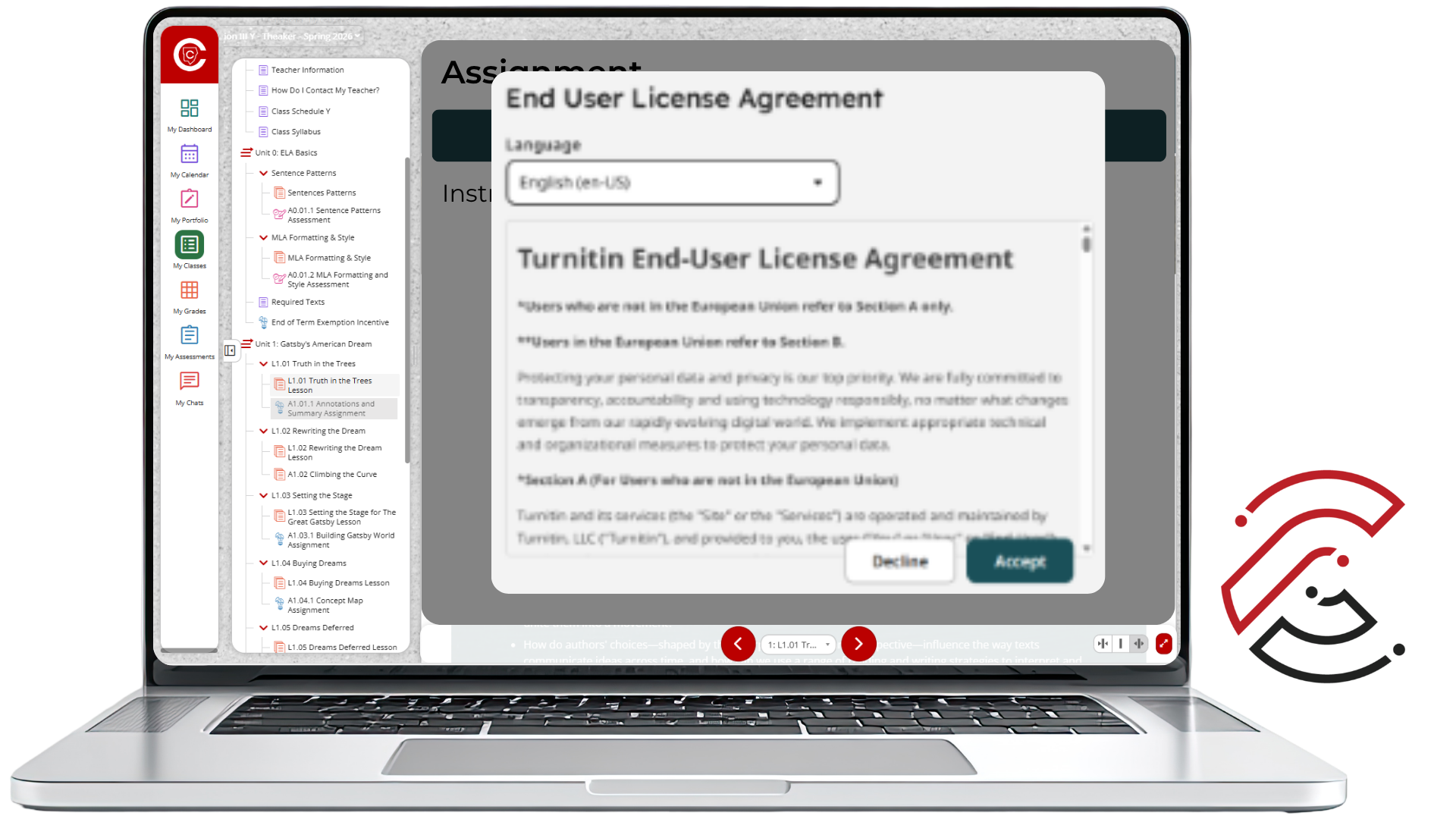
NOTE: First-time users may see this agreement before the submission window opens. Be sure the pop-up blocker is OFF in your browser. You will NOT be able to continue until you accept the User Agreement.
Select Submit
Open the assignment and select the Submit button. If the Turnitin window does not open, your browser may be blocking a pop-up or the third-party site permissions needed for the embedded Turnitin window.
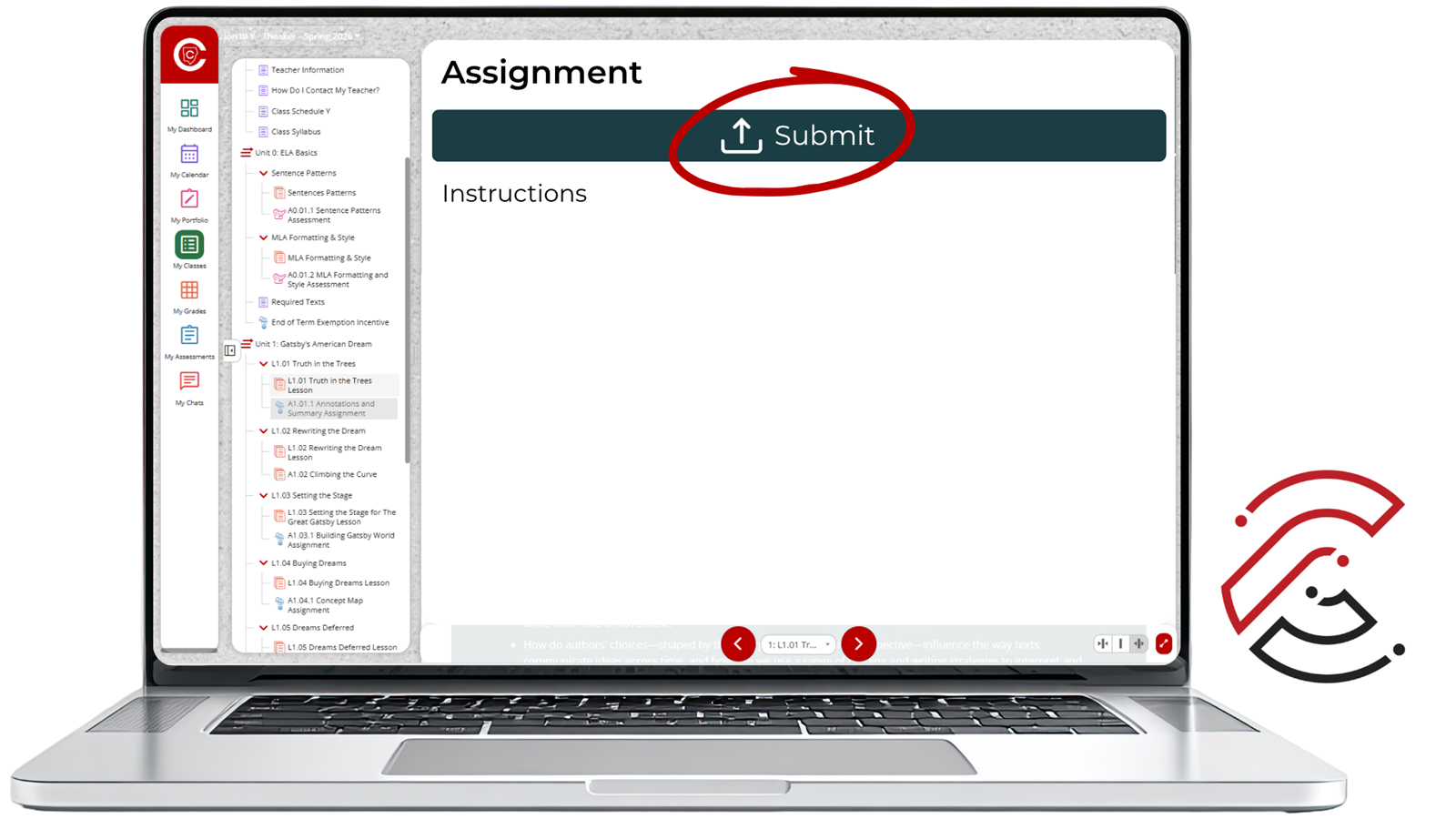

Select Submit from the assignment page to begin the Turnitin upload process.
If Nothing Opens
Look near your browser's address bar for a blocked pop-up message or icon. Allow pop-ups and redirects for the CTLS page, then try Submit again.
Using Google Chrome?
If Chrome blocks the Turnitin window, select the Pop-up blocked icon in the address bar, choose to always allow pop-ups and redirects from the site, and select Done.
Using Microsoft Edge?
In Edge, you can allow a specific site under Settings > Privacy, search, and services > Site permissions > All permissions > Pop-ups and redirects. You can turn off the Pop-up Blocker there.
Upload from Your Device
In the Turnitin upload window, select Browse Files, then choose Your device. Locate your assignment file on your computer and select it.
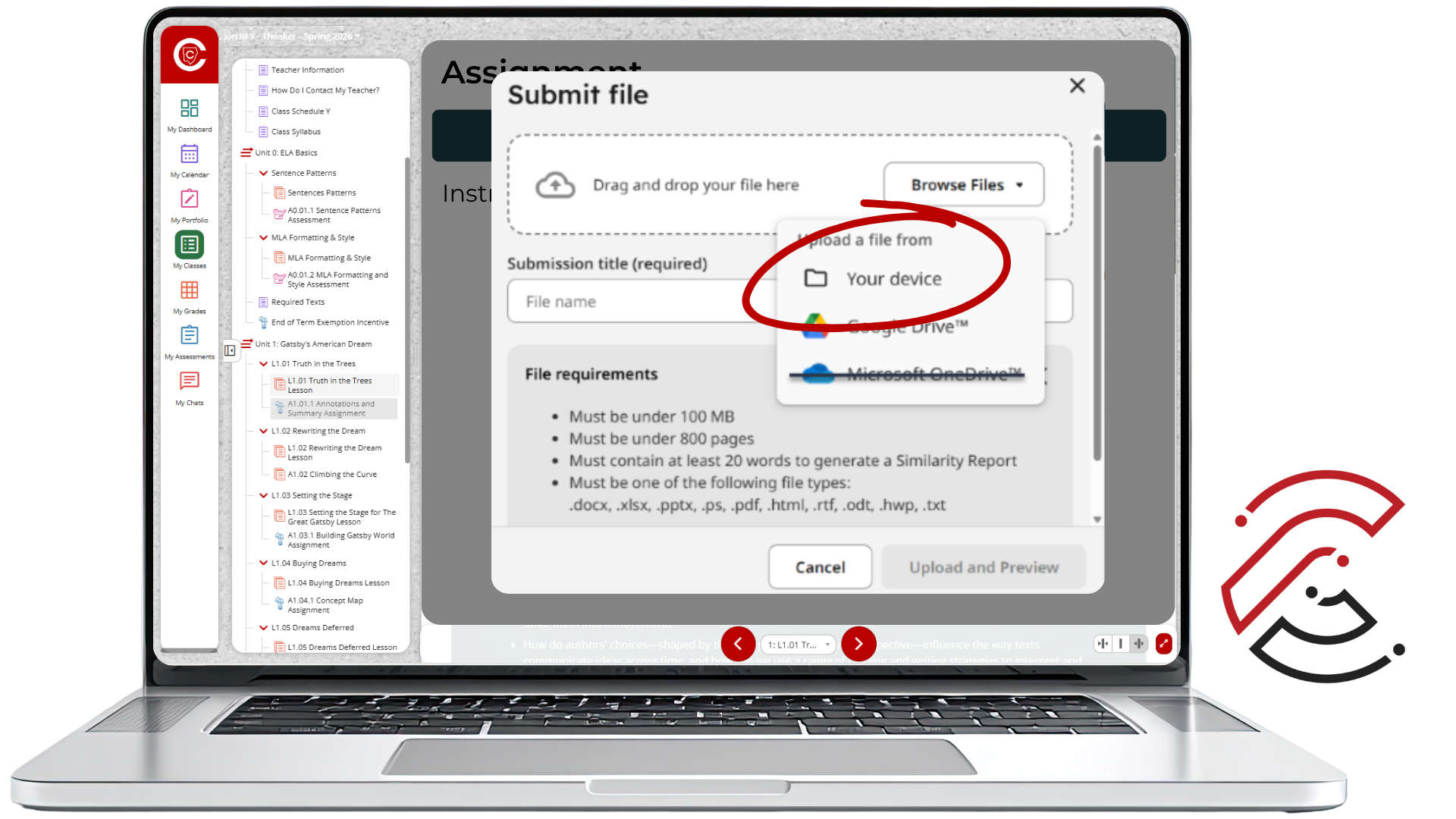
For CVA assignments, use Your device to upload the file you want to submit.
Do Not Choose Microsoft OneDrive
The Microsoft OneDrive option is not available for this CVA Turnitin workflow. Selecting it may lead to a Microsoft Need admin approval message. Download or save the file to your computer first, then upload it with Your device.
Preview Before You Submit
Turnitin uses your file name as the submission title unless you change it. Select Upload and Preview, then confirm that the preview shows the correct document. Review the pages and select Submit to finish.
Check Before You Finish
If resubmissions are not enabled, you may not be able to replace an incorrect file. Make sure the preview shows the assignment you actually intend to submit.
Make Sure It Went Through
Wait until the submission finishes processing. A successful submission will show a confirmation or submitted status. In CTLS, you may also see a green message confirming that your file was successfully uploaded.
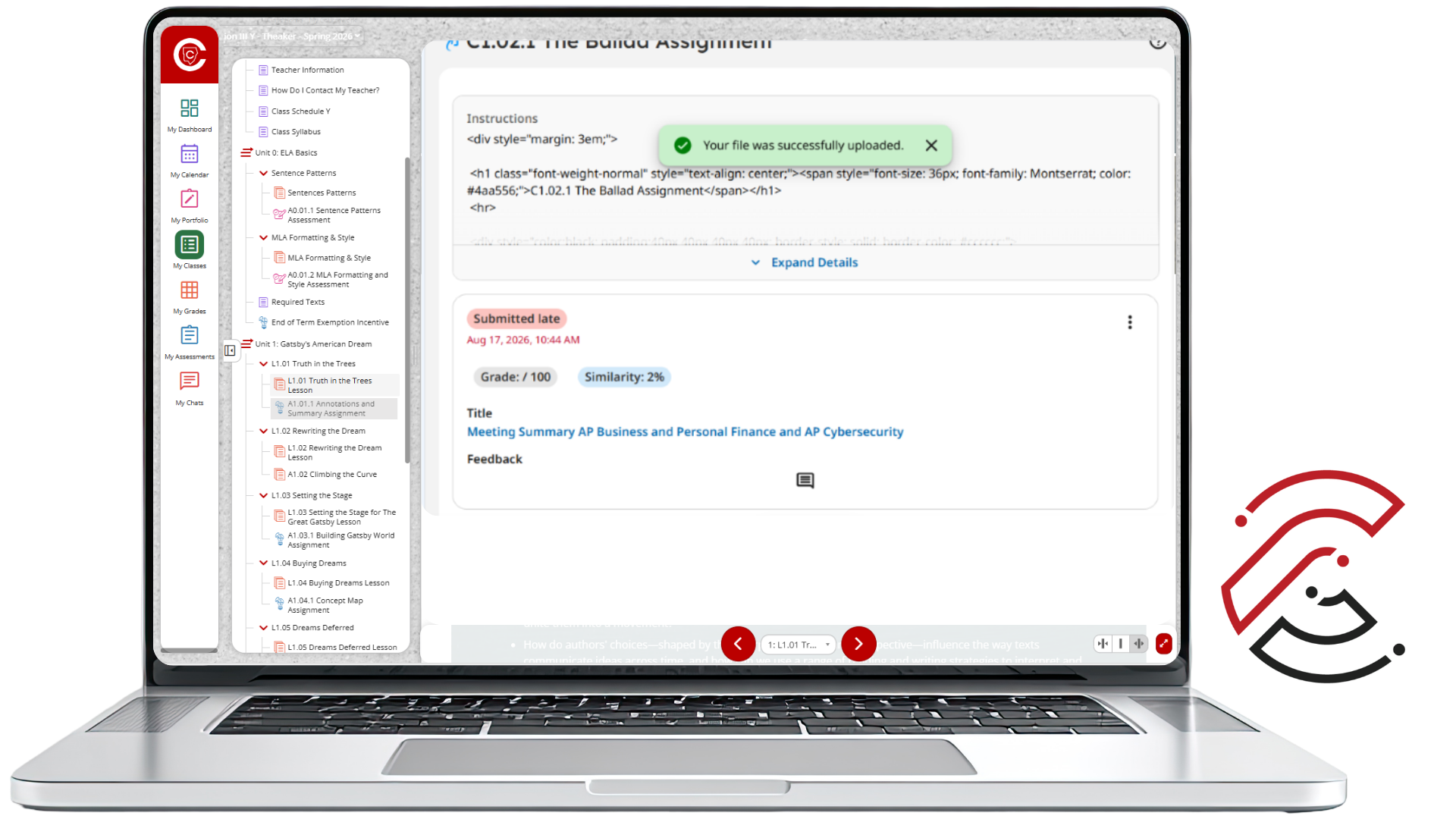
Do not leave the assignment until you can confirm that the file was submitted successfully.
File Check
Will Turnitin Accept My File?
Turnitin accepts several common file types, including Microsoft Word. Remember, CVA Teachers cannot accept links for assignments, so uploading a file to Turnitin ensures that your teacher can access your submission.
Common Choices
.doc / .docx
.pdf
.txt
.rtf
.pptx
PDF Reminder
A PDF used for similarity checking needs selectable text. A scanned image of a document may be rejected because Turnitin cannot read the text.
After It Is Graded
Find Your Turnitin Feedback
Your grade is only part of the story. Reopen the assignment in CTLS so you can see the comments and feedback your teacher left on the submitted file.
Return to the Assignment
Open the graded assignment in Student Coursework. In the submission area, look for the feedback callout bubble. A red dot indicates that feedback is available. Select the bubble to open your Turnitin feedback.
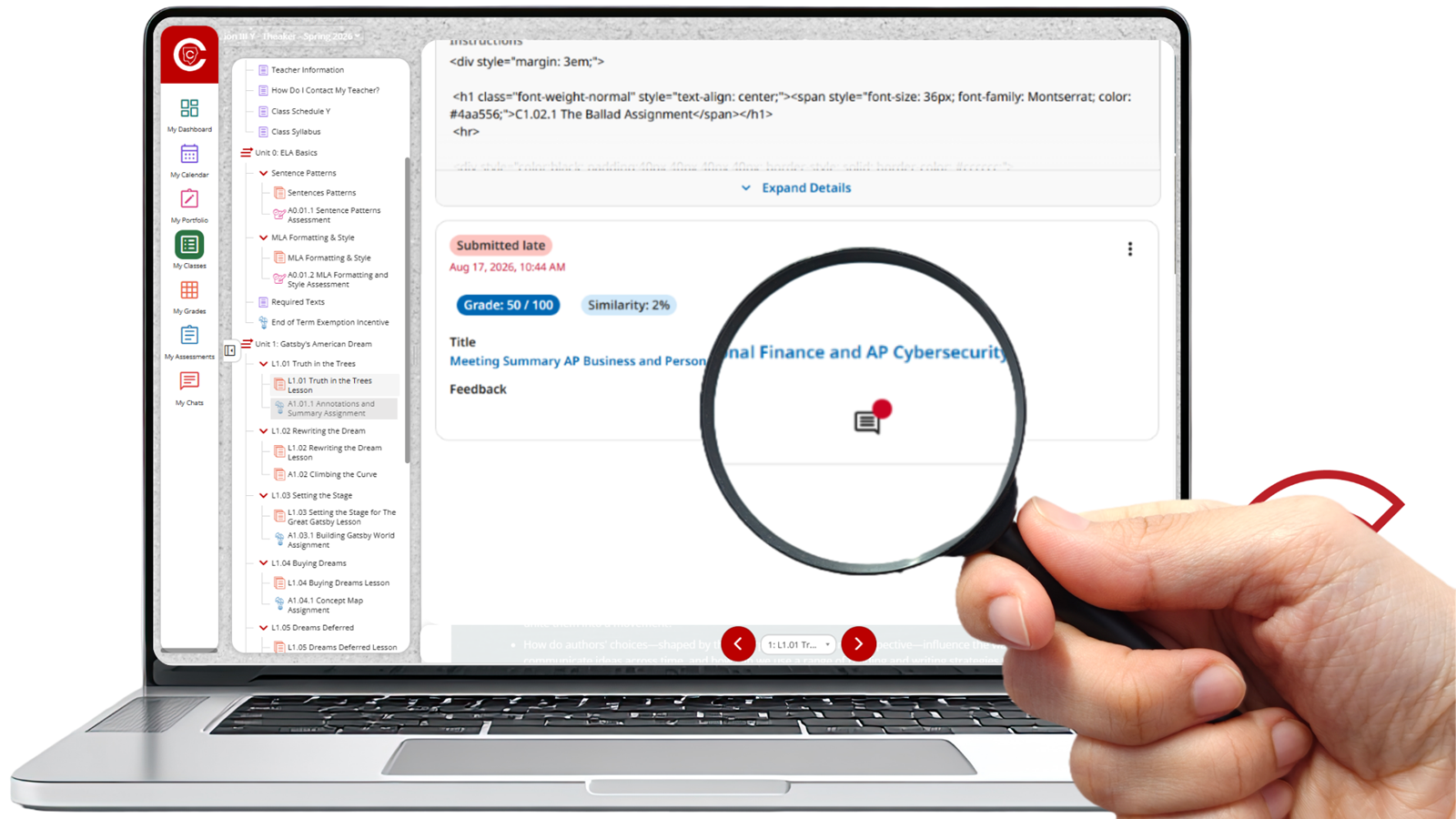
Select the feedback bubble with the red dot to move from CTLS into the Turnitin feedback view.
Open the Feedback View
Once your graded submission opens in Turnitin, select the Feedback tab. Your teacher's comments may appear directly on the paper, in the margin, or in the feedback side panel.
Comments on Specific Parts of Your Paper
Highlighted text, comment icons, QuickMarks, inline comments, and strikethroughs can point you to feedback connected to a specific sentence, paragraph, or section. Select a comment or mark to read more.
Overall Feedback
Use the Summary area to look for overall comments about your submission. Your teacher may also include an audio or video summary. If media feedback is available, use the play controls to listen or watch.
Pinned or Priority Feedback
Some feedback may be pinned because your teacher wants you to pay special attention to it. Select the pinned feedback card to see the part of your paper it applies to.
Use the Feedback
Do not stop at the score. Read the comments, look for patterns in what your teacher marked, and use that information on your next assignment. If a comment is unclear, contact your teacher and ask for clarification.
Troubleshooting
Something Not Working?
The Turnitin window will not open.
Check for a blocked pop-up icon near the browser address bar and allow pop-ups/redirects for the CTLS site. If your browser is blocking third-party site access needed by the embedded Turnitin window, allow it for the site when permitted. On a managed school device, some settings may be controlled by the district.
I selected OneDrive and received an admin approval message.
Return to the upload window. Save or download the assignment file to your computer, then choose Browse Files > Your device and upload the local copy.
Turnitin says my file cannot be uploaded.
Check the file size, page count, and format. If you are submitting a PDF, confirm that you can select and copy text from the document. If not, create a new PDF from Microsoft Word or another supported source and try again.
I do not see any teacher feedback.
Make sure the assignment has been graded, then reopen it in Student Feedback and look for the feedback callout bubble. If you still do not see feedback, contact your teacher.